browserscale studio, a free desktop app: Describe the work.
Get an automation that runs it.

For the portals and back-office apps that have no API. Studio’s agent walks the site with you in a live cloud browser, writes the automation as code your team can review, and runs it across as many browsers as the work needs.

For Windows, macOS and Linux

Get it forAll files ↗

Studio is free. You pay for the browsers by use, and your model provider bills its usage on your own key. Pricing

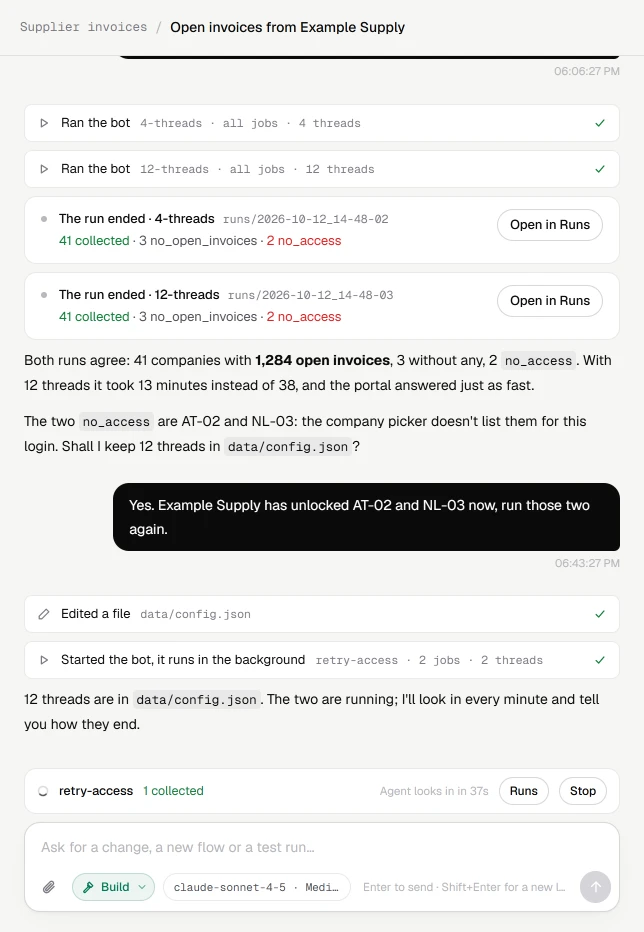
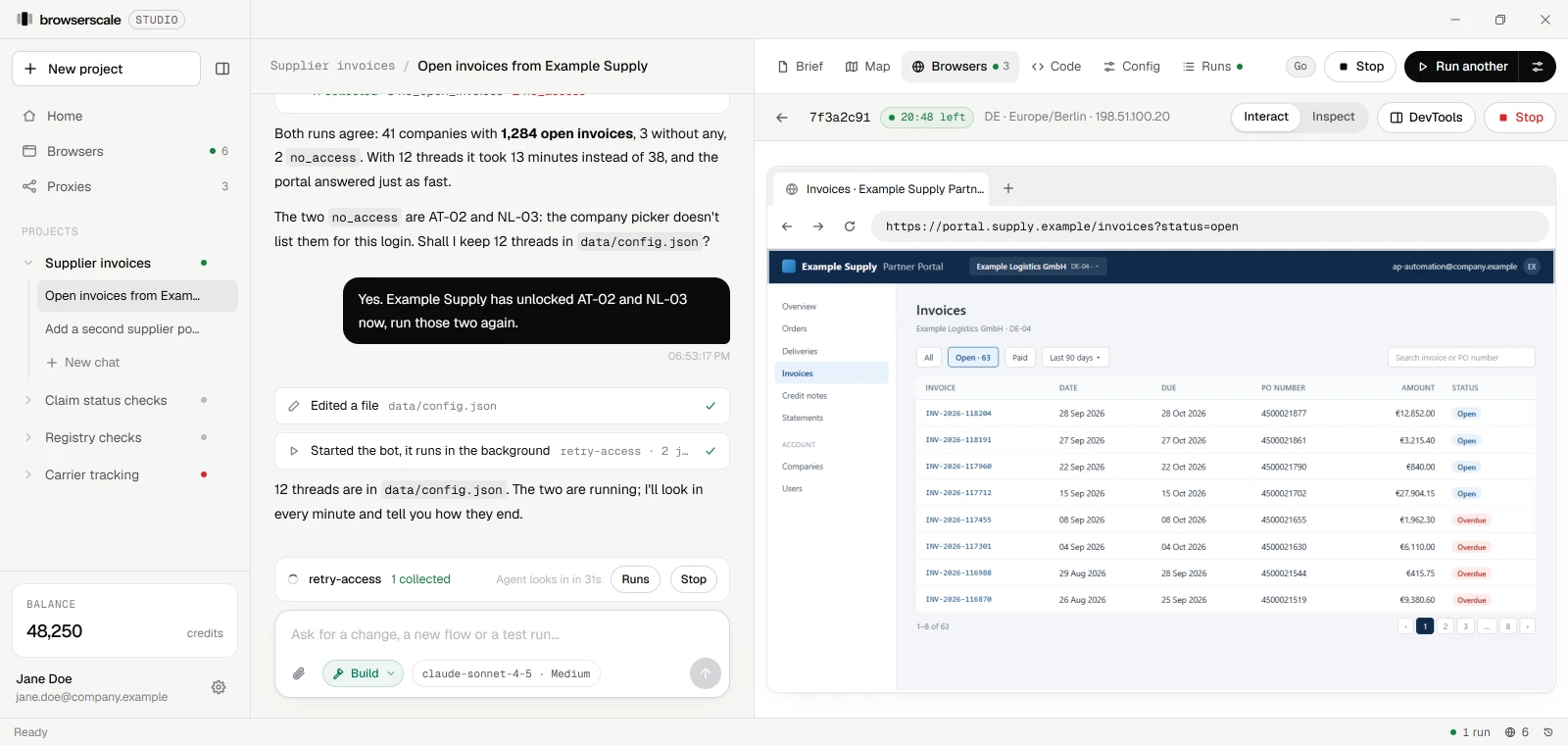
browserscale studio on Windows: a project that collects supplier invoices. The agent's chat with two compared runs on the left, a live cloud browser on the supplier portal's invoice table on the right.
  1. 1
    Projects

    Each automation is a project with its chats, runs and files.

  2. 2
    The agent

    It asks, works in the browser, runs the automation and reads the results with you.

  3. 3
    The workbench

    Brief, map, browsers, code, settings and runs, side by side with the chat.

  4. 4
    A live cloud browser

    The page the agent is on, streamed. Take it over whenever you want.

The work that lives behind a sign-in.

Most of what a back office does on the web happens on sites that will never ship an API: supplier and carrier portals, insurers, registries, the old web app next to the ERP. Studio turns each of those into an automation with named outcomes.

Accounts payable

Open invoices and statements from every supplier portal, for every entity, collected into one file each week.

collected · no_open_invoices · no_access

Claims and policies

The status of every open claim, looked up on each insurer’s portal and written back next to the case.

checked · claim_not_found

Registries and KYC

Filings and extracts from company registries for each new customer, read into the customer’s record.

filed · not_registered

Logistics

Delivery status and proof of delivery from carrier sites that only show them after a sign-in.

delivered · in_transit · exception

Back-office entry

Records entered into the web app your ERP has no connector for, row by row, with the result read back.

entered · rejected

Tools for your agent

A tested automation your own agent calls as one step, instead of clicking through the same site on every request.

done · not_found

From a description to a running automation.

The agent doesn’t write code on the first message. It agrees with you on the job, finds out how the site actually behaves, and only then builds, so the code rests on what it saw rather than on what it guessed. You approve each phase.

01 · Brief

It asks before it builds.

Describe the work in a sentence or a page. The agent asks what it can’t know, such as what counts as done and what to do when a record is missing, and writes the answers into a brief you approve.

  • Questions with options, answered in one click.
  • What it assumed without asking is listed, so you can correct it.
  • Every version of the brief is kept, with a diff to restore from.
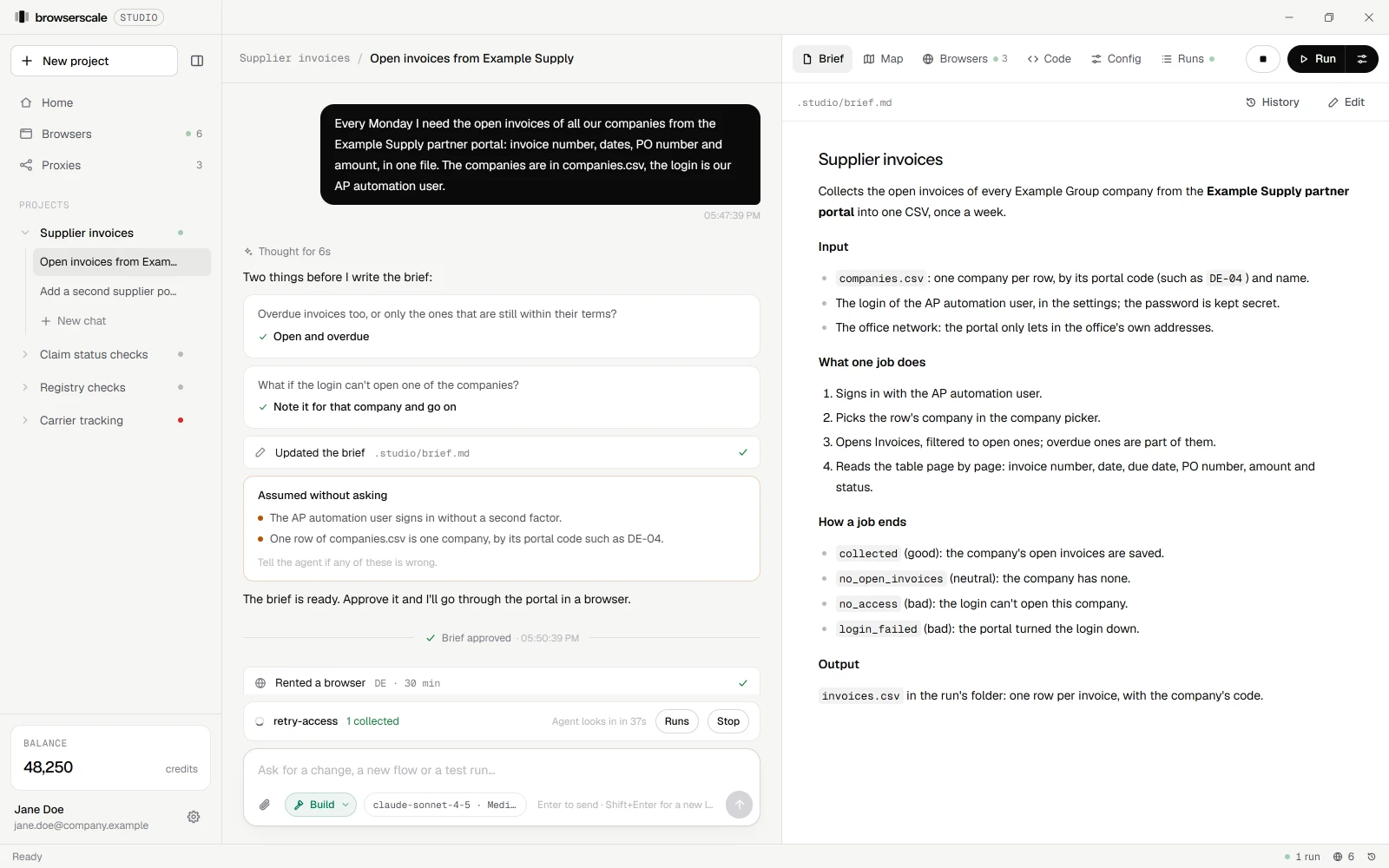
Studio in the Brief phase: the chat with the agent's questions on the left, the approved brief for collecting supplier invoices on the right.
02 · Explore

It walks the site and maps it.

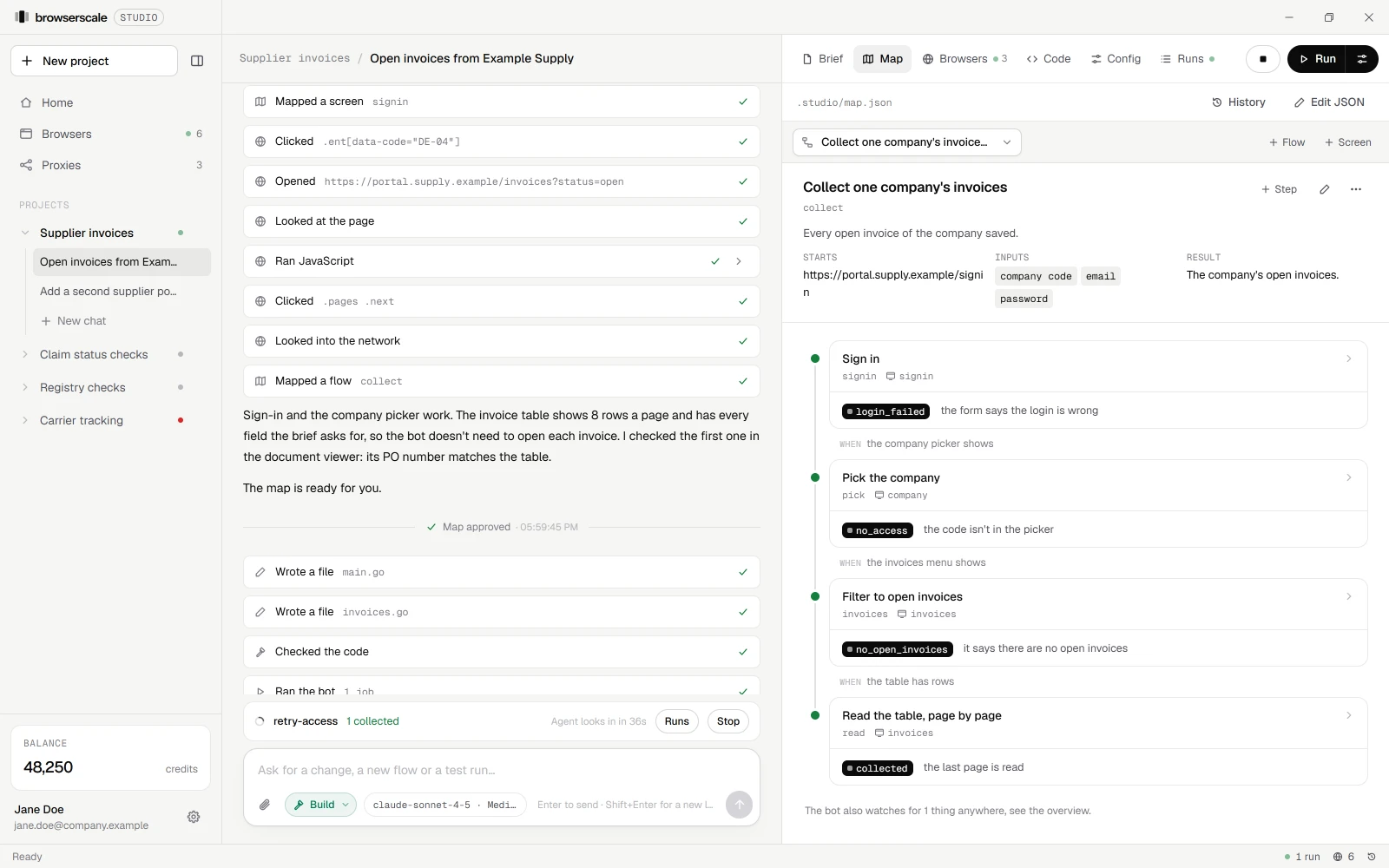
In a live cloud browser, the agent goes through the portal the way a job will: sign-in, the company picker, the invoice table. What it finds becomes a map of flows, screens and elements, the outcomes each step can have and how a job ends.

  • A step done in the browser is marked verified; one it expects but hasn’t seen stays assumed.
  • Each screen keeps a shot, its elements and how to find them.
  • You approve the map before any code is written.
Studio in the Explore phase: the agent's browser steps in the chat, and the mapped flow with four verified steps and their outcomes.
03 · Build

It writes code you can review.

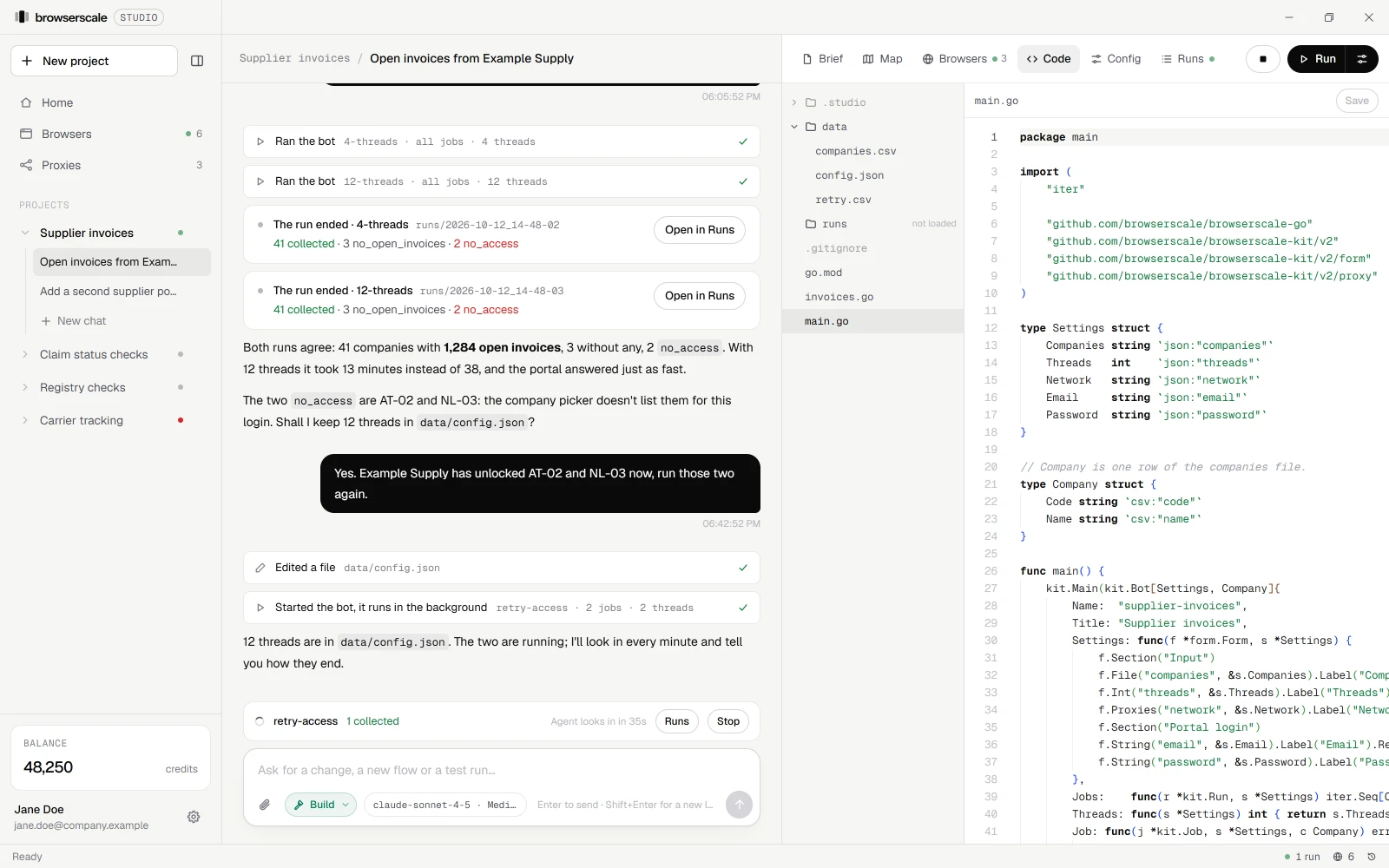
The automation is a plain Go module, written from the map: one step per screen, every outcome raced in one wait, the settings as a form. The agent builds it, runs a first job and fixes what broke. When the portal changes later, it walks the changed part again and updates the map and the code that rest on it.

  • Built on browserscale-go and browserscale-kit, in a folder of its own.
  • Open it in Studio’s editor, your IDE or your own coding agent.
  • go build makes it one executable that runs without Studio.
Studio's code tab with main.go of the supplier invoices automation: its settings, jobs and ends.
04 · Run

It runs at scale and reads the results.

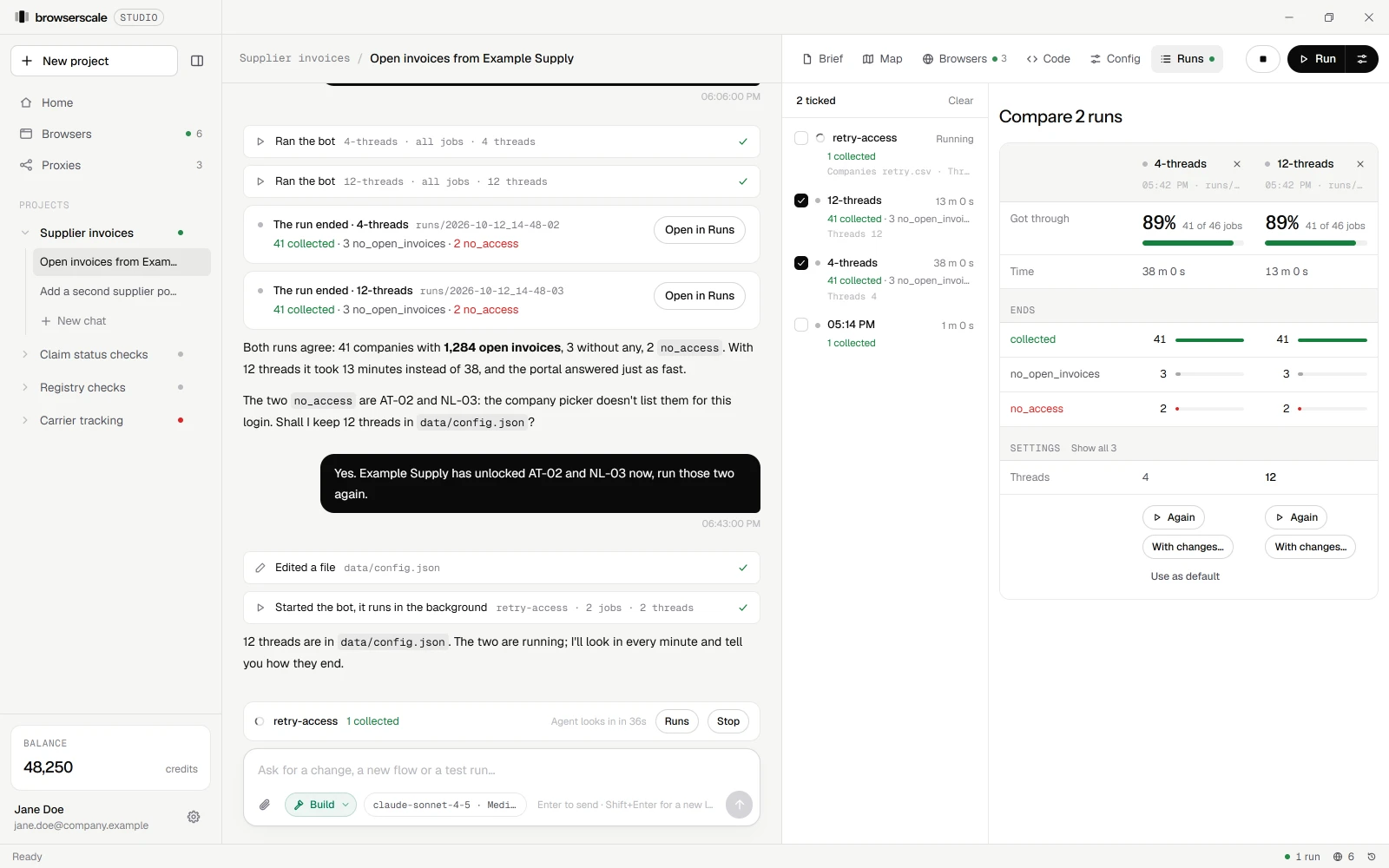
A run works through its jobs, each in its own browser, on as many threads as you give it. A goal counts results, not tries: ten accounts means ten, however many signups get blocked on the way. Every job ends with a name the automation defines, so runs compare by what happened, not by exit codes.

  • Each end says what follows: a job that got blocked can start again on another proxy.
  • Run with changes: other settings and a label, side by side with the saved ones.
  • Long runs go on in the background. The agent looks in on them and comes back with how they ended and what to try next.
Studio comparing two runs over 46 companies: 4 threads took 38 minutes, 12 threads 13 minutes, with the same ends.

Everything the agent sees, you see.

The workbench sits next to the chat: what the agent decided, the browser it’s in, and what each run did.

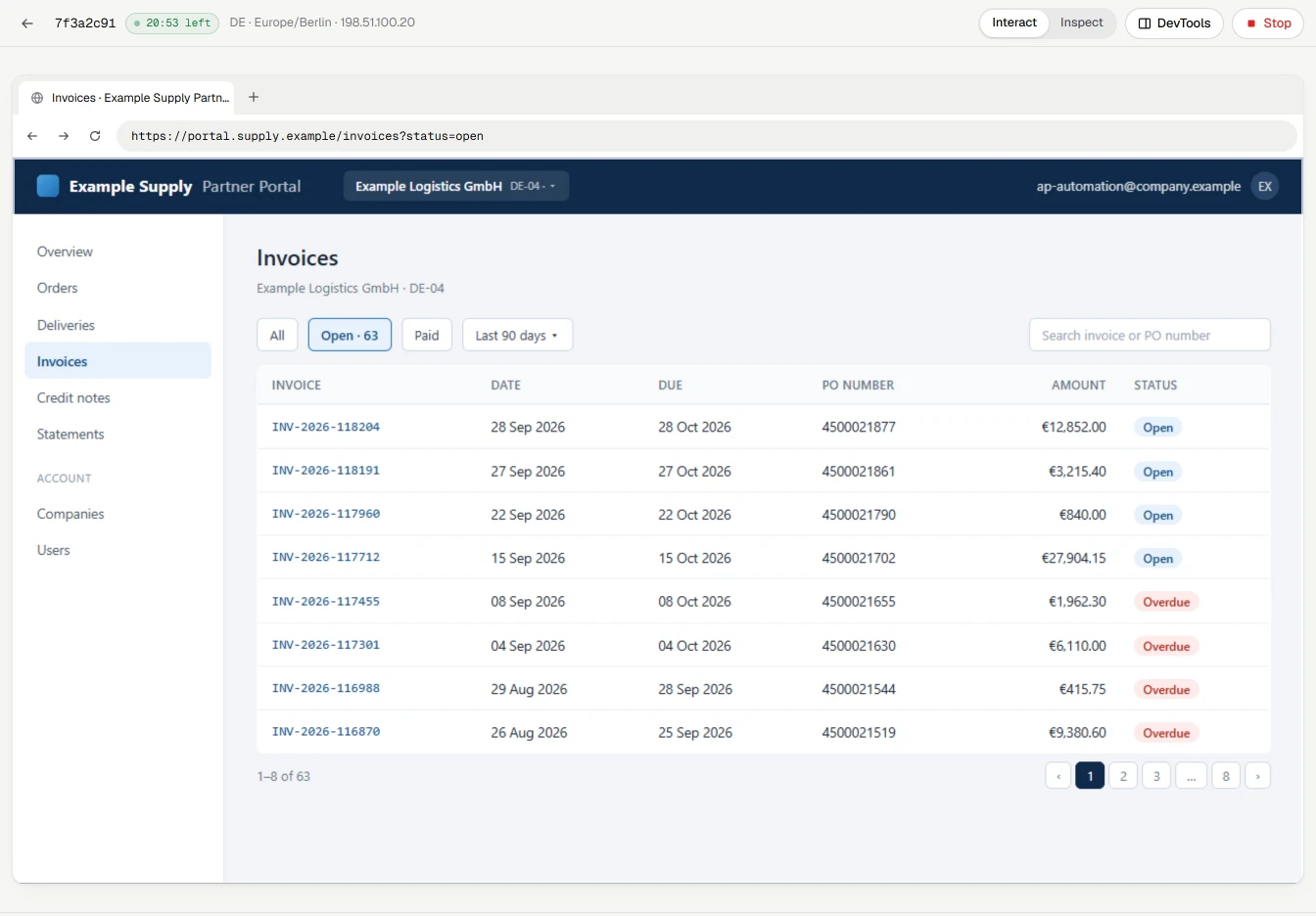
A live browser session in Studio showing the Example Supply partner portal's invoice table, with Interact, Inspect and DevTools controls.
Take the browser over

Any browser on the account, streamed live with its tabs, country and exit address. Interact hands you mouse and keyboard, for a sign-in only a person may do; Inspect opens an element in DevTools beside the stream.

The chat after two runs: both ended with 41 companies collected, and the agent explains the two companies without access.
Results, read with you

The agent compares runs, names what ended badly and why, and asks before it changes anything.

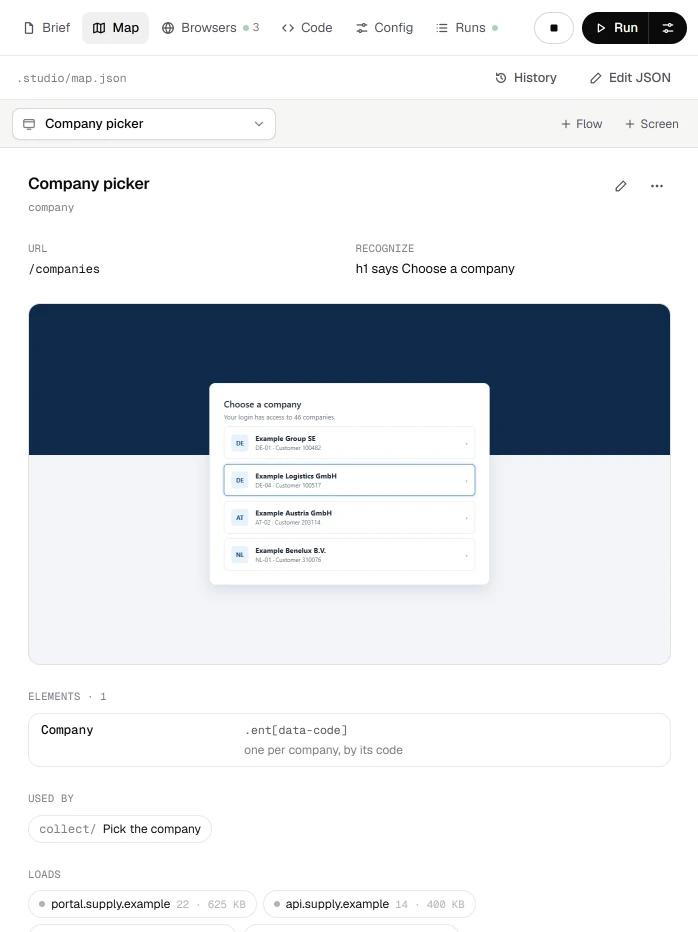
The map's entry for the company picker screen, with its shot, element locator, the step that uses it and the hosts it loads from.
Every screen, mapped

Its URL, how to recognize it, the elements on it, which steps use it and what it loads from which host.

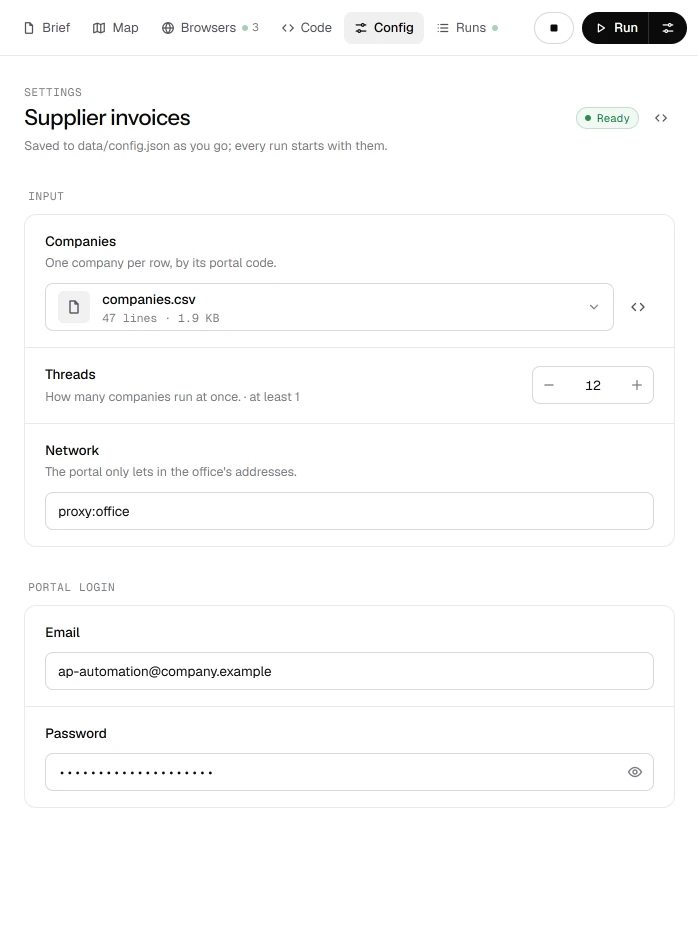
The settings form of the supplier invoices automation: companies file, threads, network and the portal login with a masked password.
Settings as a form

The automation declares what it needs and Studio draws the form: input files, threads, the network, logins. Secrets stay masked.

BriefMapBrowsersCodeConfigRunsRunNetworkRecorded while exploring · 4 visits · 186 requestsInvoicesHostsResourcesScreensLabelsAPIGET /api/invoices?status=*The invoice table’s data, as JSONreadAPIGET /api/companiesThe company picker’s listreadDOCUMENTGET /invoicesThe page itselfloadSTATIC/assets/*41 files, 2.3 MB, the same on every runcacheTRACKING3 hostsAnalytics and ads, 27 requestsblockBOT PROTECTION1 hostLoaded as it is, every timekeep
The data behind the page

What the site loads is recorded while the agent explores. Where a table comes from an API, the automation can read it there; trackers and heavy files can stay out, so runs need less traffic.

Underneath

The same browsers the SDKs rent.

What the agent explores in is what the automation runs on, so nothing changes between a test and a run of thousands.

The platform
  • Real Chromium on GPUs, streamed live
  • Frames at any depth, across origins
  • Waits that race every outcome of a step
  • Captchas solved inside the browser
  • Your proxies, or managed ones by country
  • Sign-ins kept across runs, codes read from email
Clicks first, requests where they pay

Fewer page loads.
The same identity.

While the agent explores, Studio records everything the site loads. Where a table comes from the site’s own API, the steps after sign-in can run as requests: milliseconds instead of seconds, and far less browser time per job.

  • Requests go out on Chromium’s own network stack, so their TLS and HTTP/2 are the browser’s, from the same proxy exit and with the session’s cookies.
  • Steps behind a bot-protection check stay in the browser; requests take over before or after them.
  • The agent suggests it where it clearly pays, and never moves a working step on its own.

Requests run on Windows and on Macs with Apple silicon; more platforms are on the way.

One job · Example Supply portal
Every step in the browser
4 page loads
21.0 s
sign inpick companyopen invoicesread table
Requests after sign-in
1 page load, 2 API calls
7.2 s
sign in
  • GET /api/companies180 ms
  • GET /api/invoices210 ms
in the browserrequest, same TLS and HTTP/2 as the browser
For the hundredth run

Made to run without you.

One job that worked is a demo. What Studio builds is meant to run every week on its own, so what that takes comes with every automation.

  1. 07:00 run 14
  2. 07:02
  3. 08:00
  4. 09:00
  5. 09:40
Agentrun 14 · 31 of 46 collected

Since 09:20 the new jobs end on the invoice page: the portal moved invoices under Billing → Documents. Shall I walk the new way and update the automation?

Yes, update itNot now
The agent keeps an eye on it

Runs started in Studio go on in the background. The agent looks in as often as the run needs, or as you tell it, and hears the moment one ends. When jobs start ending differently, it says what changed and what it would do.

companies.csv46
31 done
in run 14, skipped
15 to go
run 15 starts here
It picks up where it stopped

A store keeps what’s done across runs, safe for parallel jobs. Start again and finished items are skipped.

job 17proxy failednext proxy
job 17collected12 invoices
job 23errorscreenshot
Trouble is retried first

A browser or proxy that fails gets the job a fresh browser, and another proxy when the proxy was at fault. Anything unexpected keeps its step and a screenshot.

every 15 min09:0018:30
running since Monday 06:00
On a schedule, or as a service

Every few minutes, at set times of day, or until you stop it. The automation keeps its own schedule.

find
2 threads
12 queued
download
6 threads
Several tasks in one run

One task finds new documents while another downloads them, handing work over through a queue, each with its own threads.

Integrations

Write it once. Use it everywhere.

A sign-in that several portals share, or a service’s API, becomes an integration all your projects can use. It’s versioned: a change made for one project reaches the others when you update them, not before.

portal-ssov4
The sign-in the supplier portals share
supplier-invoicesv4statementsv4delivery-notesv3 · update
sms-codesv2
Codes from your SMS provider
registry-extractsv2claims-statusv2
For teams running this in production

The agent builds it once.
You get a program.

Studio is where the automation is made, not where it has to live. What comes out is an executable of its own that runs on any machine, without the app and without a model around it.

what you hand to a server
  • supplier-invoices.exe
  • data/
  • config.json
  • companies.csv
  • runs/
  1. 01

    go build turns the project into one program: an .exe on Windows, a binary on macOS and Linux, cross-compiled for a server from any of them.

  2. 02

    Copy it with its data folder. On that machine there is no Studio, no model, no agent and no Go, only the program and your browserscale key.

  3. 03

    Started on its own it asks for its settings in the terminal; with -yes it runs with data/config.json as it is.

Code, not a recording
A Go module in your repository. Review it, version it, diff a fix. No workflow format and no runtime of ours wrapped around it.
No model at run time
The model works while the site is explored and the automation written. A run costs browser minutes only, and does the same thing every time.
Your model, your key
Anthropic, OpenAI, Gemini or any OpenAI-compatible server, including one you host. Usage is billed by the provider, on your key.
Secrets stay out of the prompt
Keys live in the operating system’s credential store. Proxies are pasted as the provider lists them and checked by Studio; the agent picks them by name and never sees their credentials. Secret settings stay masked.
Your network
Route an automation through your own fixed addresses when a portal only lets in known IPs, or through managed proxies in a given country.
Headless on a server
The program and the command line both run from a scheduler or CI, read the key from the environment and exit non-zero when a run failed.
from a terminal
# build the automation into one program, here for a Linux server
$ GOOS=linux go build -o supplier-invoices .
# on the server: no Studio, only the program and its data folder
$ BROWSERSCALE_API_KEY=… ./supplier-invoices -yes -threads 12 -label weekly
# or from a machine with Studio installed: the same project by name
$ browserscale run supplier-invoices -set companies=retry.csv
$ browserscale runs supplier-invoices

Two ways to run it

The program on its own, wherever you put it. Or, where Studio is installed, the browserscale command: it runs the same projects by name with Studio’s sign-in, and a run started there shows up live in the app.

The command line in the guide

Four steps to a first run.

The last one is a sentence.

For Windows, macOS and Linux

Get it forAll files ↗
  1. 01
    Install

    The installer for your system, Homebrew on a Mac, or npm anywhere. Building automations needs Go from go.dev.

  2. 02
    Sign in

    With an API key from your browserscale account. Studio is free; the browsers are billed to the account's balance by use.

  3. 03
    Add a model

    A key for the provider you want, for a smart model and a fast one.

  4. 04
    Describe the work

    In your own words. The agent asks what it needs, then opens a browser.

Questions

Do I need to know Go?

No. You describe the work, approve the brief and the map, and read how the runs ended; the code is there when you or your engineers want to review it. Studio needs the Go toolchain installed, because it builds the automation on your machine.

Where does the automation run?

Wherever you copy it. The automation builds into one executable, an .exe on Windows or a binary on macOS and Linux, that runs with its data folder and your browserscale key, without Studio or a model. The browsers it drives run in browserscale’s cloud, so nothing heavy runs locally.

What happens when the portal changes?

You tell the agent what broke, or a run shows it in how its jobs ended. The project keeps the map and what was recorded on the site, and what the agent no longer finds there is marked, so it walks only the changed part again and updates the map and the code that rest on it. Every change is logged, and earlier versions of the brief and the map can be restored.

Does the agent see our passwords?

Proxies are saved in Studio and the agent chooses them by name, so their credentials never reach the model. The browserscale and model keys are kept in the operating system’s credential store, and settings marked secret are masked in the form.

What can the agent do on my computer?

It works in the project’s folder. A file elsewhere, such as the list of companies or a screenshot of how the work is done today, it reads once you attach it to the chat. A command in the terminal runs only after you allow it, or when it starts like one you allowed before.

Can we use our own coding agent instead?

Yes. A project is a plain folder, so you can open it in Cursor, Claude Code, Codex or any other agent. Connect it to the hosted MCP server and it can look at the same browsers.

What does it cost?

Studio itself is free. The browsers your automations use are billed to your browserscale balance by use, at the same rates as from the SDKs, and your model provider bills its usage on your own key. A finished automation runs without a model, so a run costs browser time only.